Car Photo API for DMS Platforms: One Integration, Every Dealer
How a DMS or inventory platform can offer AI car photos to every dealer through one API: each dealer's own background, logo and number plate style, applied automatically from a dealer ID, with results delivered by webhook.
PixelRide · Nov 26, 2026 · 6 min read
If you run a dealer management system or an inventory platform, you hold the photos for hundreds of rooftops. Every one of those dealers wants their cars to look professional online, and every one of them wants their own look: their own showroom, their own logo, their own way of covering number plates.
Doing that per dealer, by hand or with a separate tool for each, does not scale. This guide explains how a DMS can add AI car photos as a feature for every dealer on the platform with a single integration, and what to plan for when you roll it out.
Why platforms add AI photos to their DMS
Photo editing is one of the few features dealers notice every day. Every car they list shows the result.
- A paid add-on. Dealers already pay photographers and editors. Offering studio-quality photos inside the DMS gives you a feature you can charge for per dealer or per vehicle.
- Better listings everywhere you syndicate. The same finished photos go to the dealer's website and to every marketplace your feed reaches.
- Consistency without training. Photos taken by different staff on different lots come back with the same background, framing and branding.
- Less churn. A feature that runs on every vehicle, every day, is a feature dealers miss when they leave.
One integration, every dealer's own look
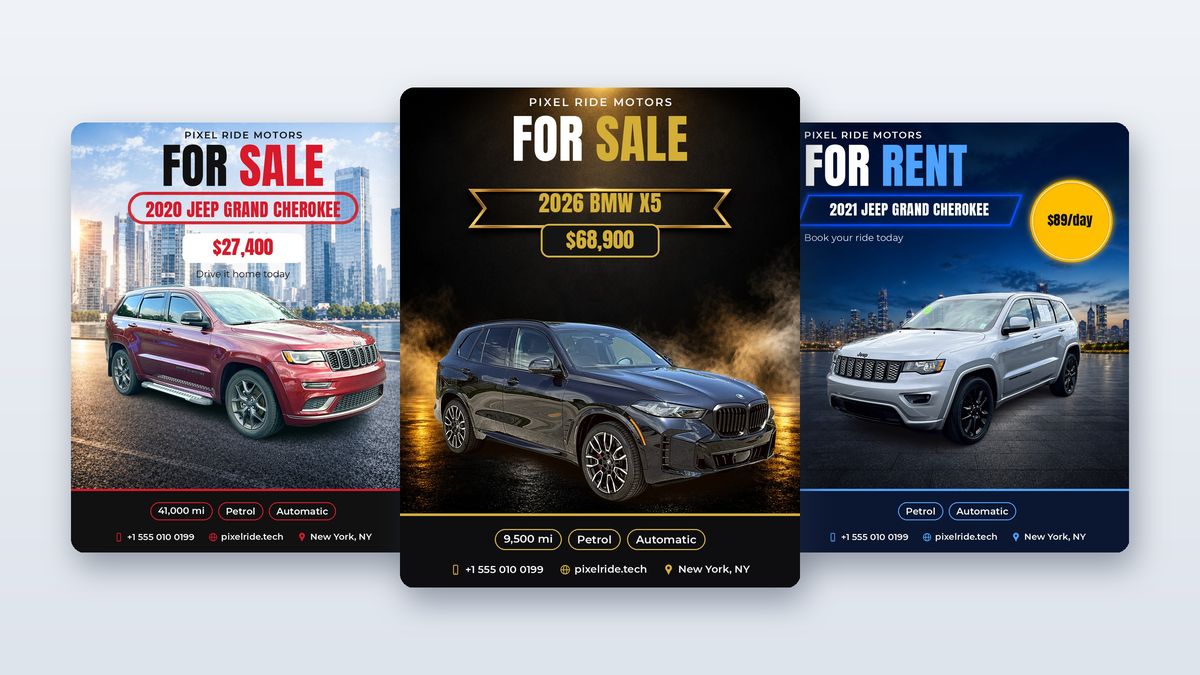
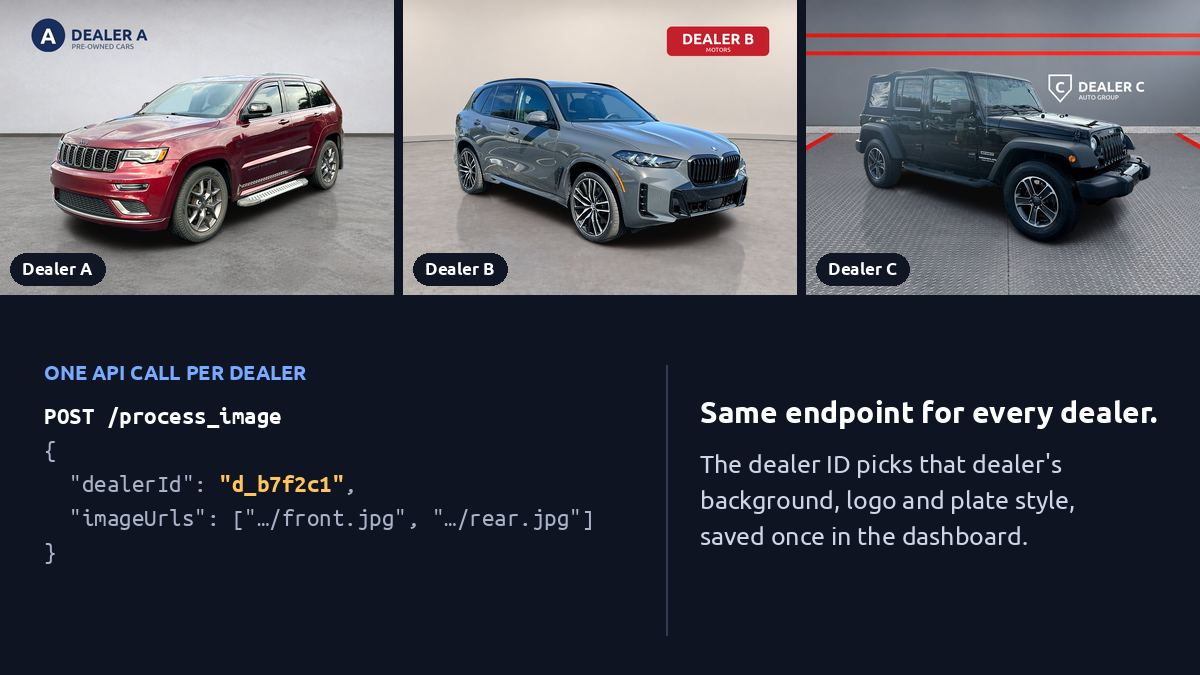
The key requirement for a platform is that each dealer keeps its own branding while you maintain only one integration. In PixelRide this works through dealer profiles.
A profile for each dealer
Your platform has one PixelRide account. Under it, you create a dealer profile for each rooftop, and each profile gets a dealer ID. A profile can store:
- Background. A showroom with a reflective floor, a studio, or a custom background built from the dealer's own wall and floor images.
- Logo and position. The dealer's logo, placed in one of several preset positions on the wall, the same way on every photo.
- Number plates. Cover the plate with a plain plate, blur it, or show the dealer's own branded plate image.
- Colour adjustments. Brightness, contrast and exposure, if a dealer wants a lighter or punchier look.
- Shot-type labels. An optional label for each photo, such as front corner, side profile, cockpit or odometer, set for left-hand or right-hand drive markets.
Anything a dealer does not set falls back to your account defaults. So you can give every new dealer a sensible platform look on day one and customise only the dealers who ask.
The dealer ID does the rest
Every request goes to the same endpoint. The only difference between dealers is the dealer ID you send:
POST /process_image
Authorization: YOUR_API_KEY
Content-Type: application/json

{
  "dealerId": "d_b7f2c1",
  "imageUrls": [
    "https://your-cdn.example.com/stock/1234/front.jpg",
    "https://your-cdn.example.com/stock/1234/rear.jpg",
    "https://your-cdn.example.com/stock/1234/dashboard.jpg"
  ],
  "inspectionId": "stock-1234"
}
PixelRide looks up that dealer's background, logo and plate settings and applies them to every photo in the batch. Your code never needs to know which background or logo a dealer has chosen. When a dealer changes their look, they or your team update the profile once, and the next batch uses it.
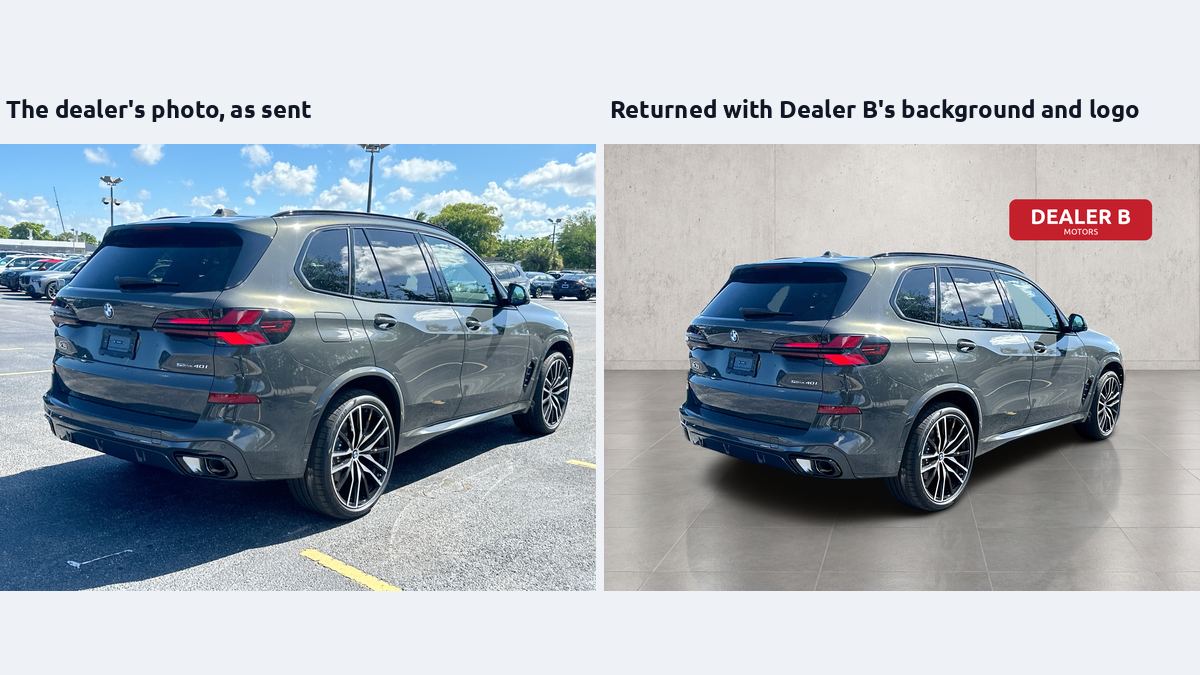
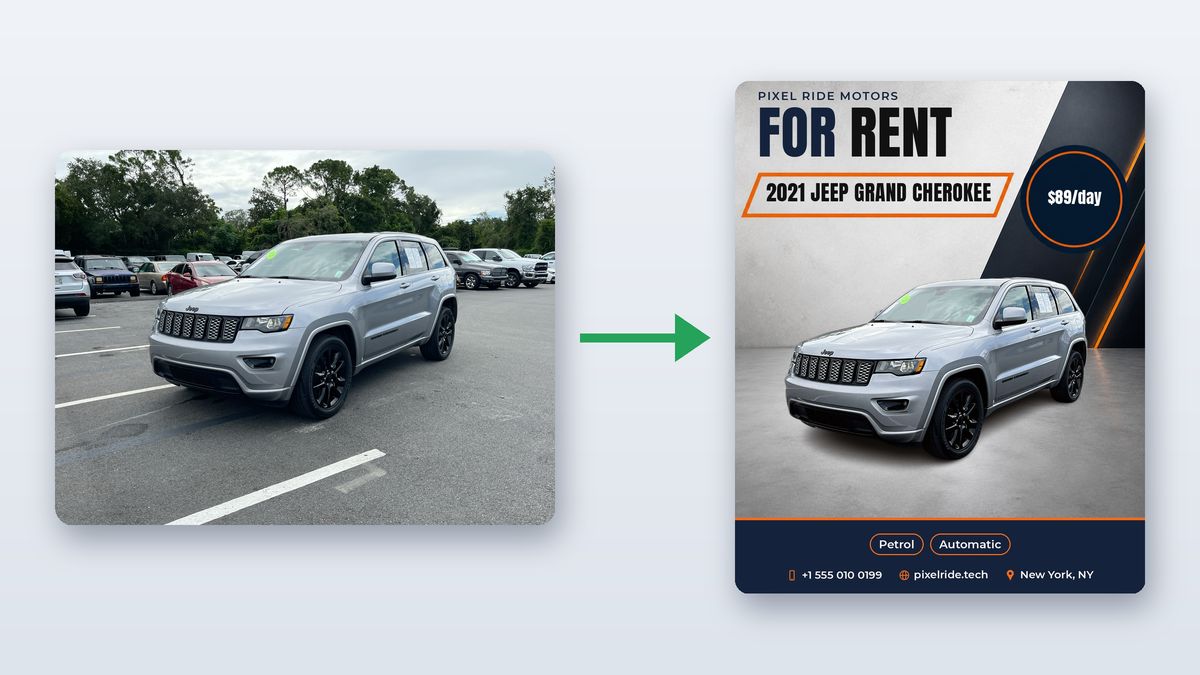
The photo on the left is what the dealer uploads to your platform. The one on the right is what comes back for Dealer B, with no editing step on their side.
Keys and logins for dealers
You decide how much each dealer sees:
- Fully inside your platform. Use your account key for all requests and pass the dealer ID. Dealers never see PixelRide.
- A key per dealer. Give a dealer their own API key, which is locked to that dealer, for example if they send photos from their own system.
- A dashboard login per dealer. Invite a dealer to the PixelRide dashboard, where they see only their own batches and can change their own settings.
How a batch flows through the API
- Your platform sends the photo URLs for a vehicle, with the dealer ID. The API replies at once with a batch ID, so your upload flow never waits.
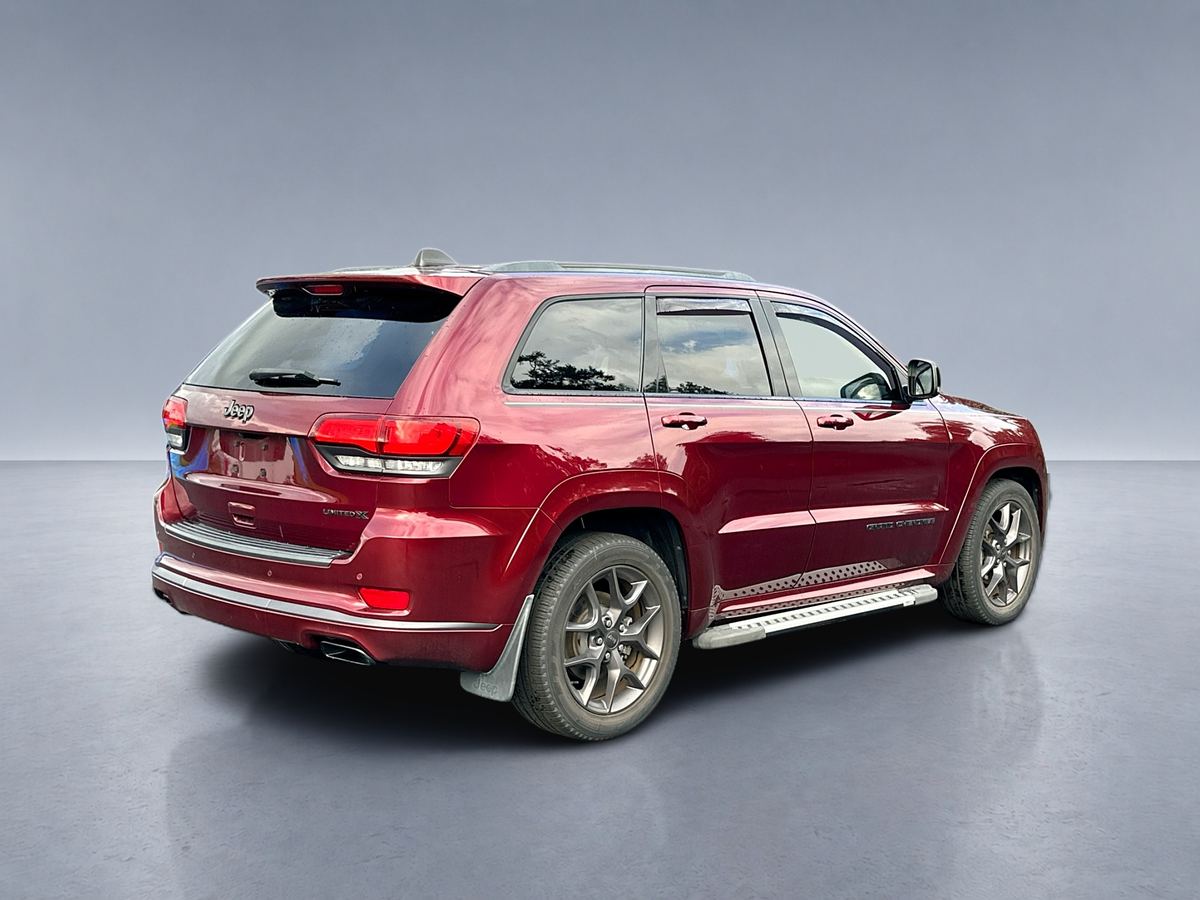
- Each photo is sorted automatically. Exterior photos get the dealer's background, floor reflection and logo. Interior photos are detected and handled separately: the view through the windows is replaced, and the cabin is left as it is.
- Every result is quality-checked. If the check fails, the original photo is returned rather than a damaged edit.
- Your webhook is called when the whole batch is finished.
A trimmed webhook payload looks like this:
{
  "batchId": "B_9c41e7a2",
  "status": "completed",
  "total": 3,
  "completed": 3,
  "failed": 0,
  "results": [
    {
      "inputUrl": "https://your-cdn.example.com/stock/1234/front.jpg",
      "outputUrl": "https://…/B_9c41e7a2_t_3_c_0_output.jpg",
      "status": "success",
      "shotType": "Driver_Front_Corner_Exterior"
    }
  ]
}
Store the outputUrl against the vehicle, and use shotType if you want to order the gallery automatically, for example to put the front corner shot first. The webhook call is secured with a key, and you can send a test call from the dashboard before going live.
Integration patterns that work
Process on upload. The most common setup: when a dealer uploads photos for a new vehicle, your platform sends them to PixelRide and replaces them when the webhook arrives. The dealer sees finished photos without doing anything.
Backfill existing stock. When a dealer turns the feature on, send their current inventory in batches so the whole lot matches from day one, not just new arrivals.
Opt-in per dealer. Keep a switch in your dealer settings. Only send photos for dealers who have the add-on, and bill them on your side by vehicle or by image. The dashboard shows batches per dealer, which makes usage easy to check.
Keep the originals. Store both versions. Dealers sometimes want an original for a specific shot, and keeping it costs little.
A rollout checklist for DMS teams
- Pick your default look: one background, logo position and plate style that suits most dealers.
- Create dealer profiles for your pilot rooftops and add their logos.
- Map your dealer IDs to PixelRide dealer IDs in your database.
- Build the webhook handler and test it with the dashboard's test call.
- Run a pilot with a few dealers and a full set of photos per car, exteriors and interiors.
- Check the edge cases: close-ups, badges, tyres, dark cars and photos taken in tight spaces.
- Decide on pricing for your dealers: per vehicle, per image or as part of a plan.
- Turn on backfill for each dealer as they join.
What to check when choosing a photo API
Not every car photo tool is built for platforms. Before you commit, check:
- Per-dealer settings in one account. Without them you end up managing a separate account, key or template for every rooftop.
- Interior handling. A full vehicle set is half interiors. The API should handle them in the same request.
- Safe failures. Find out what happens when the AI gets a photo wrong. Returning the original is better than a broken edit going live.
- Asynchronous batches and webhooks. Polling for results across hundreds of dealers adds load and delay.
- Regional details. Number plate options and left- or right-hand drive labelling matter if you serve more than one market.
Add AI photos to your platform
PixelRide is built for exactly this: one API for your whole platform, with every dealer's background and logo applied automatically. Read more about PixelRide for DMS platforms and car background removal for dealerships, or contact us to set up a pilot with your first dealers.