How to Remove GPS Data From Car Photos Before Posting
Car photos can contain the location where they were taken. Learn how to check for GPS data, remove it and protect your privacy before listing a vehicle.
PixelRide · Nov 18, 2026 · 2 min read
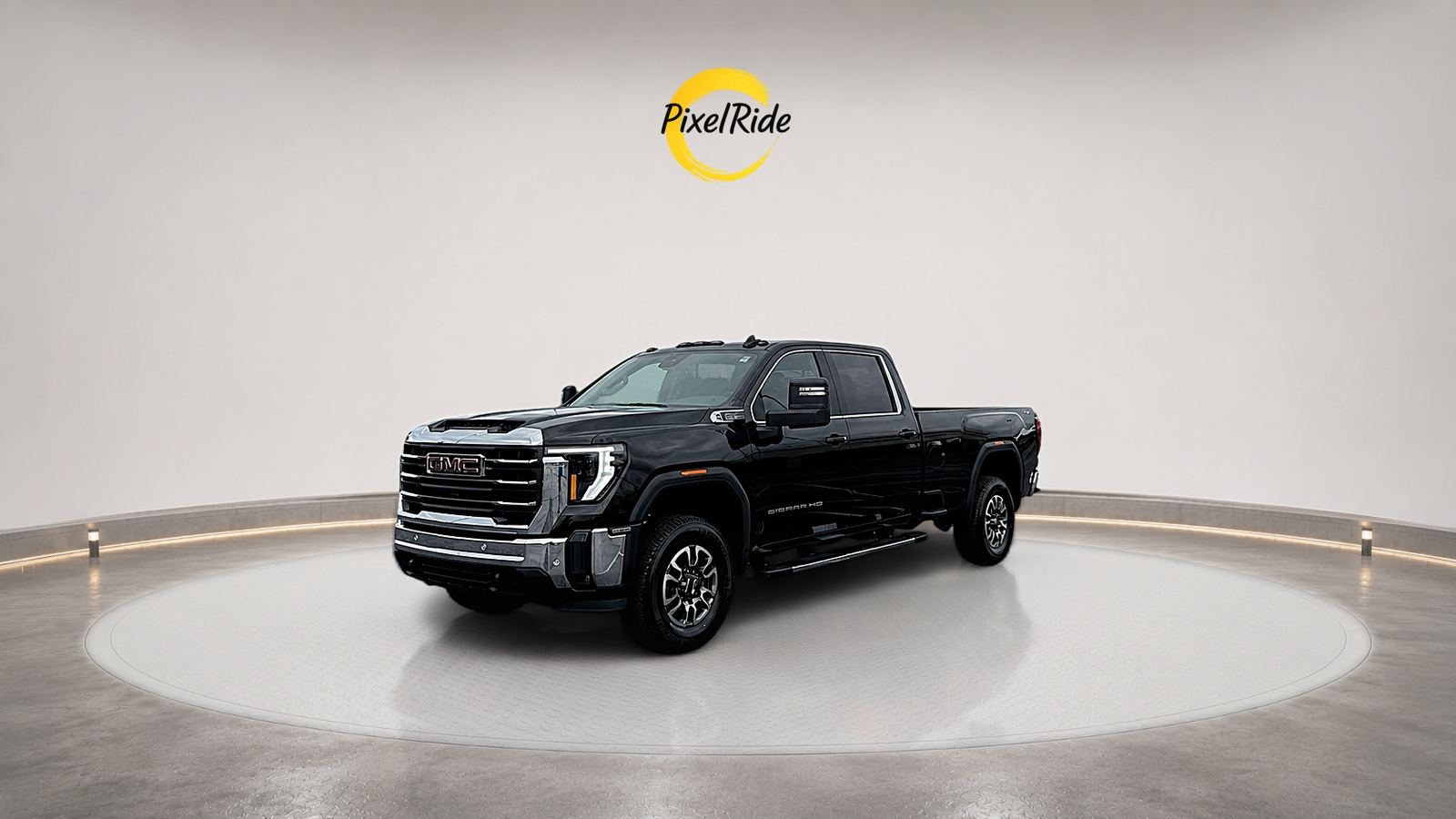
A photo of your car can reveal more than the car. If location access was enabled when it was taken, the file may contain GPS coordinates for the exact place you parked it, which could be your home or workplace.
This information is part of the photo's hidden metadata, often called EXIF data. It can also include the camera model and the date and time the image was taken. Before you post a car for sale or send original files to strangers, it is worth checking.
What hidden data can a car photo contain?
Depending on the device and settings, a photo may include:
- GPS latitude and longitude
- Date and time taken
- Phone or camera make and model
- Editing software information
- Comments and other tags
Not every photo has all of this. A screenshot, an edited image or a file downloaded from another service may contain much less.
How to check and remove it
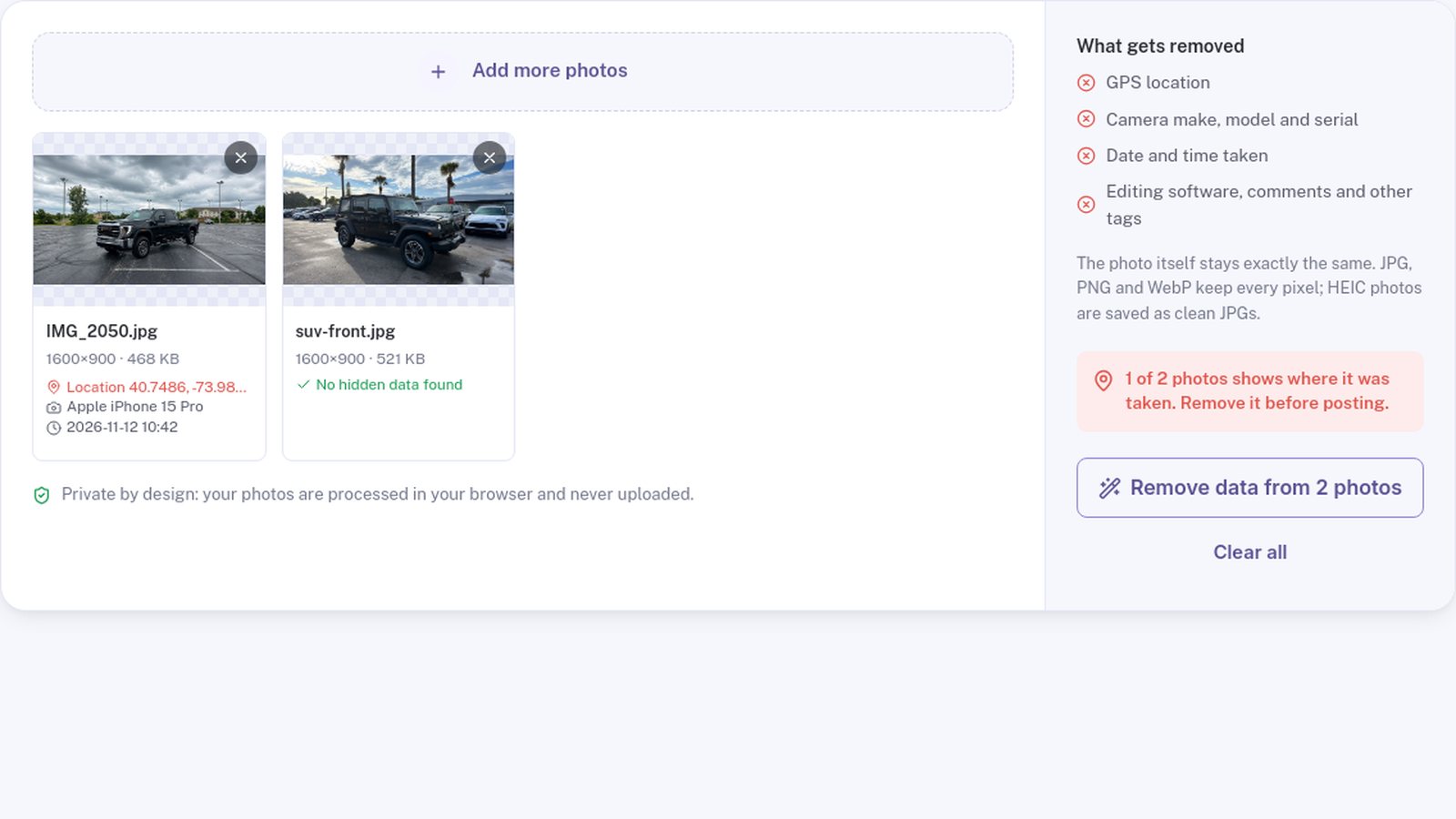
- Open PixelRide's free photo location remover.
- Add the photos you plan to share.
- Check each card for location, camera and date information.
- Select Remove data.
- Confirm that each photo is marked as cleaned, then download the files.
The check and cleanup happen in your browser. For JPG, PNG and WebP photos, the tool removes the metadata without changing the image pixels, and it keeps the orientation setting so phone photos still display the right way up. HEIC photos are saved as clean JPGs.
Turn off location on your iPhone when sharing
iPhones also let you remove location when sharing from the Photos app:
- Select the photos.
- Tap Share.
- Tap Options near the top.
- Turn off Location.
To stop saving location with new photos, open Settings, then Privacy & Security, Location Services, Camera, and choose Never. Android settings vary by manufacturer and camera app, so look for a location or geo-tag option in your camera settings.
Metadata is only part of your privacy
Removing GPS data will not hide what appears in the picture. Before posting, also check for:
- House numbers and street signs
- Your license plate, if you prefer not to show it
- Mail, documents or parking permits inside the car
- Reflections showing your home or family
- Distinctive buildings that identify your location
For private sales, choose a neutral public place for photos when possible, and meet buyers somewhere safe.
A simple pre-post routine
Use this order to avoid repeating work:
- Choose your best originals.
- Convert HEIC photos if needed.
- Resize them for the listing site.
- Remove location and camera data.
- Download the final set and upload it.
Run the location check again if another app exported the final images. Different apps handle metadata differently.
Privacy is one part of a trustworthy listing. Clear, accurate photos are another. If you want a cleaner presentation, the PixelRide editor can replace the background around your vehicle.