HEIC Photos Not Uploading? How to Fix iPhone Car Photos
If iPhone car photos will not upload, the HEIC format may be the cause. Convert them to JPG and change your camera setting for future vehicle photos.
PixelRide · Nov 18, 2026 · 2 min read
You took good photos of the car, chose them from your phone or computer, and the listing site rejected them or showed nothing. If they came from an iPhone, the file format is one of the first things to check.
Many iPhones save photos as HEIC by default. It is an efficient format, but not every website, older computer or dealer system accepts it. Converting the photos to JPG usually solves the problem.
How to tell whether HEIC is the problem
Look at the end of the file name. IMG_2048.HEIC or .HEIF means the photo is in Apple's high-efficiency format. If you are on a Windows PC, the photo may also fail to preview or open normally.
HEIC is not the only possible cause, so also check:
- The maximum file size for each photo
- The maximum number of photos per listing
- Whether your internet connection dropped during upload
- Whether the site has an error message or a list of accepted formats
Fix existing photos
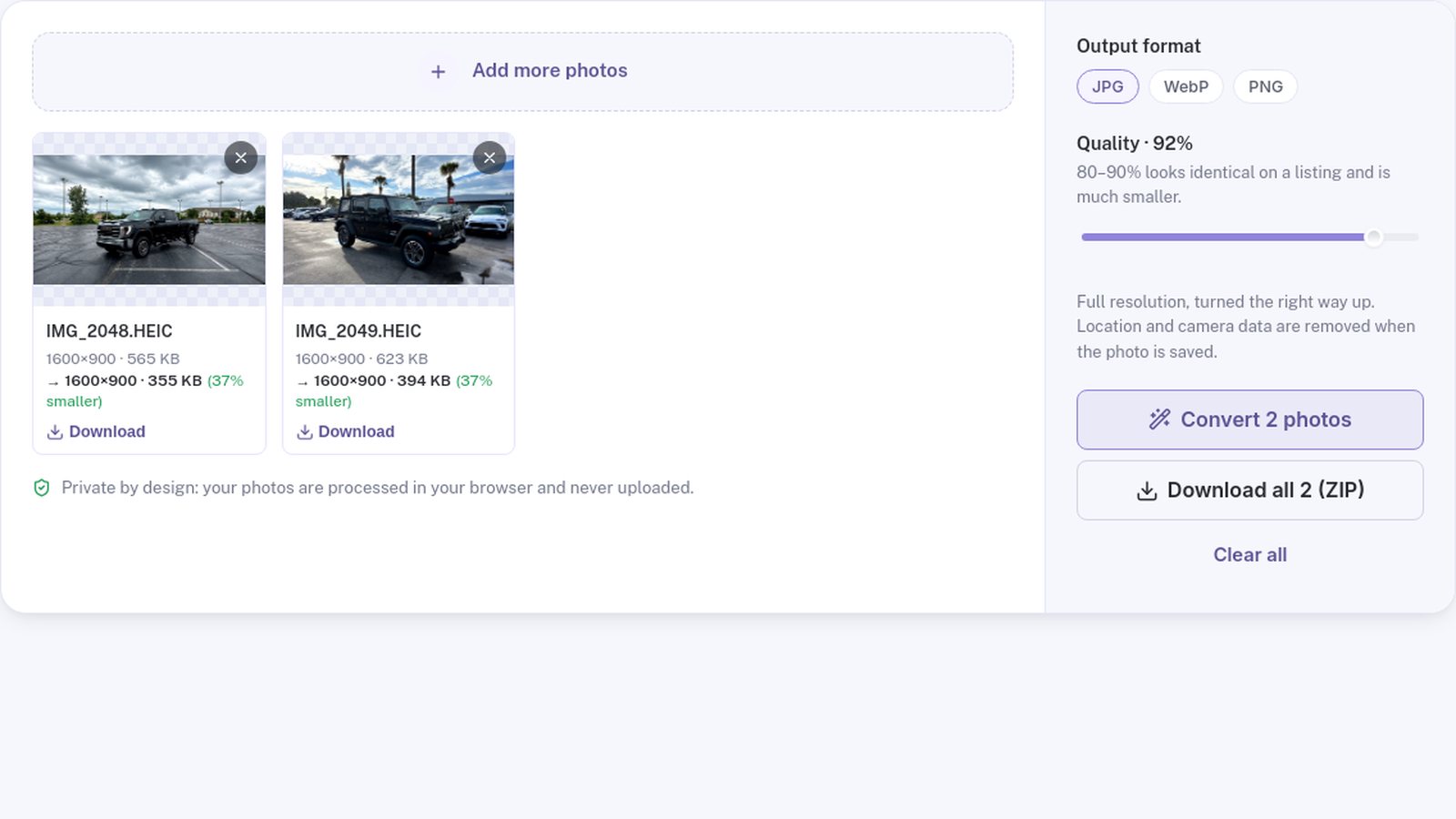
The quickest fix is to convert a copy of the photos:
- Open PixelRide's free HEIC to JPG converter.
- Add your HEIC photos. You can add up to 30 at a time.
- Keep JPG selected as the output format.
- Convert the photos and check that they look correct.
- Download them one by one or as a ZIP, then upload the JPG files to your listing.
The conversion happens in your browser, so your photos are not sent to a server. A standard 12 MP iPhone photo keeps its full resolution, and the saved JPG leaves out hidden location and camera data.
Change the setting for future photos
If you regularly photograph vehicles for listings, you can make your iPhone save JPG files:
- Open Settings.
- Tap Camera.
- Tap Formats.
- Choose Most Compatible.
This only affects new photos. Existing HEIC images will stay in that format until you convert them. Some camera features may work differently in Most Compatible mode, so switch back later if you prefer High Efficiency for everyday photos.
Prepare the photos before uploading
After converting, take a minute to make the upload smoother:
Check the size. A marketplace may need a smaller file or a particular shape. See our guide to the best image size for car listings.
Reduce very large files. If the site has a limit, compress the photos instead of retaking them.
Check for location data. Phone photos can contain GPS information. Learn how to remove GPS data from car photos before sharing originals.
Look at the order. Put a clear front three-quarter photo first, followed by the sides, rear, interior and any important details.
What if the upload still fails?
Try one converted photo first. If it works, upload the rest in smaller batches. If it fails, try another browser or check the site's help page for its current limits. A clear message about file size, photo dimensions or the number of images will tell you what to change next.
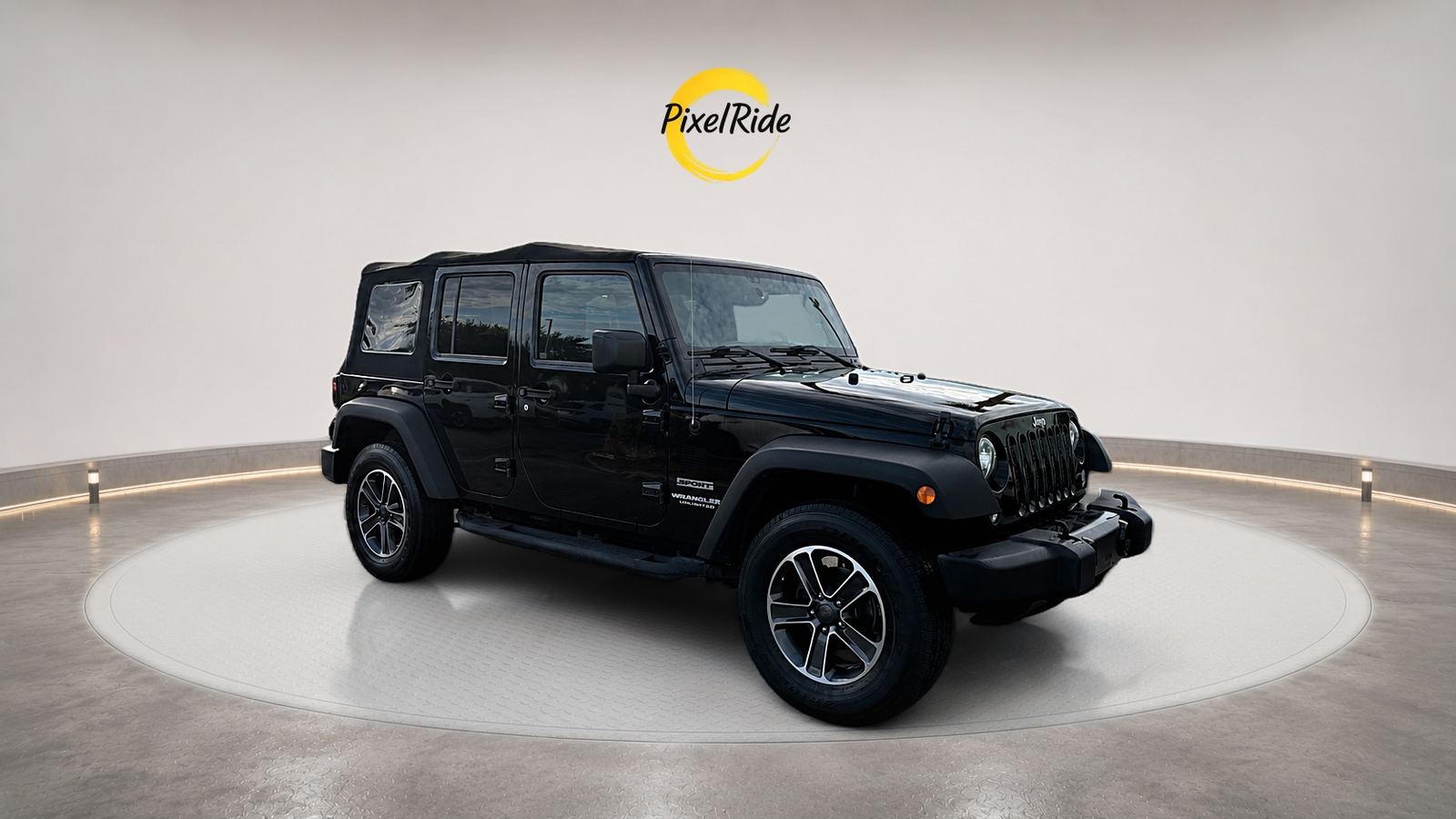
Once your photos upload correctly, make them stand out. The PixelRide editor can replace a distracting driveway or parking lot with a clean studio background.